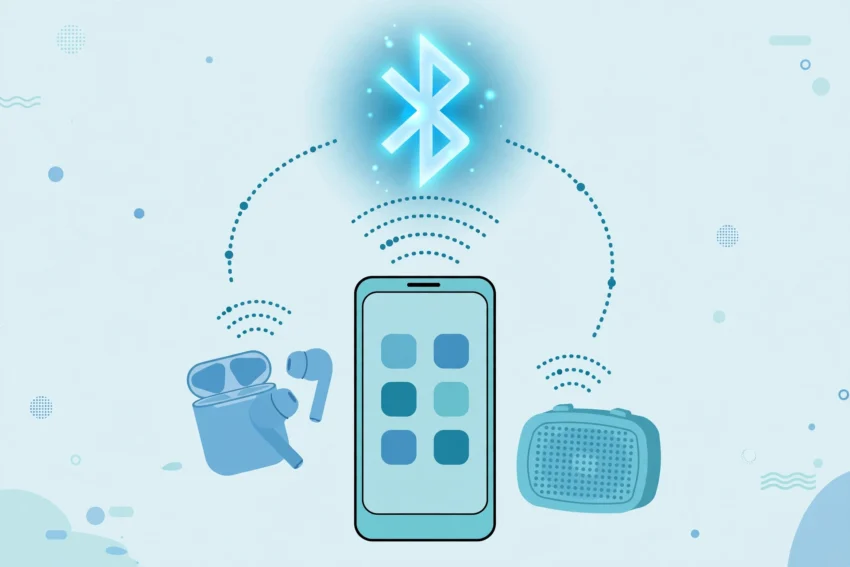
Bluetooth is one of those features we only notice when it stops working. One minute your earbuds connect the moment you open the case, and the next your phone cannot find them at all, the music keeps cutting out, or your car stereo refuses to pair. It is frustrating, but in most cases the fix is simple and takes less than five minutes.
This guide walks you through how to fix Bluetooth problems on Android and iPhone in 2026, step by step. We start with the quick fixes that solve most issues, then move on to the deeper settings for each platform, and finish with solutions for specific problems such as pairing failures, random disconnections, and stuttering audio. You do not need any special tools or technical knowledge — just your phone and a little patience.
Why Bluetooth Problems Happen
Bluetooth is a short-range wireless technology, and it depends on a surprising number of things working together: your phone’s software, the accessory’s firmware, the battery level of both devices, and even the radio environment around you. When any one of these goes wrong, the connection suffers.
The most common causes are easy to understand. A software glitch after an update can leave the Bluetooth service in a confused state. A saved pairing can become corrupted, so the phone remembers the device but cannot talk to it properly. Interference from Wi-Fi routers, microwaves, and other wireless gadgets can crowd the same 2.4 GHz frequency band that Bluetooth uses. And sometimes the problem is as simple as a low battery: many earbuds and speakers reduce their Bluetooth range or drop connections when their charge runs low.
The good news is that almost all of these causes have a straightforward fix. Work through the steps below in order, testing the connection after each one, and you will find the culprit quickly.
Quick Fixes to Try First
Before changing any settings, try these five quick steps. They solve the majority of Bluetooth problems on both Android and iPhone.
1. Turn Bluetooth off and on again. This sounds too simple, but it restarts the Bluetooth service on your phone and clears temporary glitches. Turn it off, wait about ten seconds, then turn it back on.
2. Restart your phone. A full restart clears the phone’s memory and reloads every system service, including Bluetooth. If toggling Bluetooth did not help, a restart often does.
3. Move closer and remove obstacles. Bluetooth works best within about 10 metres, with a clear line of sight. Walls, your body, and a phone buried in a bag or pocket can all weaken the signal. Put the phone and the accessory in the same room and try again.
4. Charge both devices. If your earbuds, speaker, or watch are below 20 percent battery, charge them first. A low battery is a common and easily missed cause of unstable connections.
5. Turn off Wi-Fi temporarily. Because Wi-Fi and Bluetooth share the same frequency band, a busy Wi-Fi connection can interfere with Bluetooth audio. If the problem disappears when Wi-Fi is off, interference is the likely cause, and moving away from the router usually helps.
If none of these quick fixes work, the problem is probably a corrupted pairing or a settings issue. The next two sections cover the full fix for Android and iPhone.
How to Fix Bluetooth Problems on Android
Android phones give you more control over Bluetooth settings, which means more ways to fix a stubborn problem. Follow these steps in order.
Forget the device and pair it again
A corrupted pairing is the single most common cause of Bluetooth trouble on Android. Removing the device and pairing it fresh fixes it in most cases.
- Open Settings and go to Connected devices (on some phones this is under Connections and then Bluetooth).
- Find the accessory in the list of paired devices and tap the gear icon or the small arrow next to it.
- Tap Forget or Unpair.
- Put the accessory back into pairing mode — usually by holding its power or pairing button until a light flashes.
- Tap Pair new device on your phone and select the accessory when it appears.
If the accessory does not appear at all, make sure it is not already connected to another phone, tablet, or laptop nearby. Most Bluetooth accessories can only connect to one device at a time, so an old connection can block a new one.
Clear the Bluetooth cache
Android stores temporary Bluetooth data in a system cache. When that data becomes corrupted, connections fail in strange ways — devices appear and disappear, or pair but produce no sound. Clearing the cache is safe and does not delete your paired devices on most phones, though on some models you may need to pair again afterwards.
- Open Settings, then Apps, and tap See all apps.
- Tap the three-dot menu and choose Show system apps.
- Find Bluetooth in the list and tap it.
- Go to Storage and cache and tap Clear cache.
Restart your phone after clearing the cache, then try connecting again. If your phone also has a “Bluetooth” entry under system apps with a Clear storage option, use that only as a last resort, because it removes all saved pairings. If you regularly clean up your phone, our guide on how to clear cache on Android and iPhone in 2026 explains the process for every type of cache in more detail.
Check app permissions and battery settings
Some accessories, especially smartwatches and fitness trackers, need their companion app to have location permission in order to find and stay connected to the device. This is because Bluetooth scanning is treated as a location feature on Android.
Open Settings, go to Apps, find the companion app for your accessory, tap Permissions, and make sure Location is allowed. While you are there, check the app’s battery setting: if it is set to restricted or optimised aggressively, Android may kill its background connection. Setting it to Unrestricted or Not optimised can stop random disconnections.
Reset the network settings
If nothing else works, resetting the network settings restores Bluetooth, Wi-Fi, and mobile data to their factory defaults. This fixes deep software problems, but it also removes all saved Wi-Fi networks and paired Bluetooth devices, so you will need to set them up again.
- Open Settings and search for Reset.
- Tap Reset network settings (on Samsung phones this is under General management and then Reset).
- Confirm, then restart your phone and pair your accessory again.
How to Fix Bluetooth Problems on iPhone
Bluetooth on iPhone is more locked down than on Android, which means fewer settings to adjust — but the fixes that do exist are very effective.
Forget the device and reconnect
Just like on Android, a fresh pairing solves most iPhone Bluetooth problems.
- Open Settings and tap Bluetooth.
- Find the accessory under My Devices and tap the small i icon next to it.
- Tap Forget This Device and confirm.
- Put the accessory into pairing mode.
- Tap its name under Other Devices to pair it again.
Restart Bluetooth from Settings, not Control Centre
Turning Bluetooth off from Control Centre on an iPhone does not fully switch it off — it only disconnects accessories until the next day. For a proper reset, go to Settings, tap Bluetooth, and switch it off there. Wait ten seconds, switch it back on, and try connecting again.
Update iOS and reset network settings
Apple fixes Bluetooth bugs in iOS updates, so check that your phone is running the latest version. Go to Settings, then General, then Software Update, and install any update that is available.
If the problem continues, reset the network settings. On iPhone, go to Settings, then General, then Transfer or Reset iPhone, then Reset, and choose Reset Network Settings. This removes saved Wi-Fi passwords and Bluetooth pairings, so keep your Wi-Fi password handy. After the reset, pair your accessory again.
Fixing Specific Bluetooth Problems
Some problems need a targeted fix. Here are the ones people run into most often.
Your phone cannot find the accessory at all
First, confirm the accessory is actually in pairing mode — most devices stop advertising themselves after a minute or two, so you may need to press the pairing button again. Second, check whether the accessory is already connected to another device, such as a laptop or a second phone. Third, move away from other Bluetooth devices: a crowded room full of active connections can make discovery unreliable.
The connection keeps dropping
Random disconnections are usually caused by interference, low battery, or aggressive power saving. Move away from Wi-Fi routers and microwaves, charge both devices fully, and check whether the problem happens in one place only — if it does, something in that location is interfering. On Android, also check that battery optimisation is not shutting down the accessory’s companion app, and on both platforms try turning off Wi-Fi calling, which can compete for the same radio resources. If your phone feels slow overall as well as dropping Bluetooth, our guide on how to speed up a slow Android phone in 2026 may help, since an overloaded phone struggles to keep wireless connections stable.
Audio stutters or sounds poor
Stuttering audio is almost always interference or distance. Bring the phone closer to your earbuds or speaker, keep it out of a bag or back pocket, and avoid walking between the two devices and a busy Wi-Fi router. If you use a smartwatch and earbuds at the same time, try disconnecting the watch briefly — some phones struggle to maintain two Bluetooth audio streams at once. Also check the audio codec: in Android’s Developer Options, switching between Bluetooth audio codecs can sometimes clear up stuttering with specific earbuds.
Bluetooth will not connect to your car
Car stereos are a special case because they often remember old phones and run out of pairing slots. Delete your phone from the car’s Bluetooth menu as well as deleting the car from your phone, then pair again from scratch. Also check that your phone is not already connected to your earbuds or watch when you try to pair with the car — the car may fail silently if the phone is busy. Finally, check for a software update for your car’s infotainment system, as car makers do release Bluetooth compatibility fixes.
When the Accessory Is the Problem
Sometimes the phone is fine and the accessory is at fault. Test this by connecting the accessory to a different phone or tablet. If it fails there too, the accessory is the problem.
Common accessory issues include a battery that no longer holds a charge, firmware that needs updating through the maker’s app, and a pairing button that has stopped responding. Many earbuds and speakers can be factory reset by holding the power button for ten seconds or more — check the manual for the exact method. If the accessory is old and its battery drains quickly, that can also affect Bluetooth range: keeping your devices charged matters for more than just runtime, as our guide on how to make your Android battery last longer explains.
If the accessory works perfectly with another phone, the problem is specific to the combination of your phone and that accessory — usually a software bug that a phone update or a network settings reset will fix.
Frequently Asked Questions
Why does my Bluetooth keep turning off by itself?
On Android, this is usually a battery optimisation setting closing the Bluetooth service, or a system update that changed a permission. Check that no battery saver mode is active and that the Bluetooth app is not restricted in the background. On iPhone, Bluetooth turning off on its own is rare and usually points to a software bug — update iOS and, if needed, reset the network settings.
Why can my phone see the device but not pair with it?
This usually means the accessory is already paired with another device, or its pairing information is out of sync with your phone. Forget the device on both sides if possible, put the accessory back into pairing mode, and try again. Entering the wrong PIN can also cause this — most accessories use 0000 or 1234 if they ask for one.
Does Bluetooth drain my battery?
Bluetooth uses very little power on modern phones, especially with Bluetooth Low Energy. Leaving it on all day typically costs only a few percent of battery. If you notice a large drain, an app or accessory is probably keeping the connection active unnecessarily — check which apps have Bluetooth permission and remove the ones you do not recognise.
Should I keep Bluetooth on all the time?
For most people, yes. Modern Bluetooth is efficient, and keeping it on means your earbuds, watch, and car connect automatically. If you are concerned about security or battery, turning it off when you are not using it is perfectly fine — it is a personal preference, not a rule.
Why does Bluetooth sound worse than a wired connection?
Bluetooth compresses audio before sending it, which can reduce quality slightly, especially with older codecs. If your phone and earbuds both support a higher-quality codec such as aptX or LDAC, using it will improve the sound. A stuttering or crackling sound, though, is a connection problem rather than a codec problem — follow the audio steps above.
Conclusion
Bluetooth problems are annoying, but they are rarely serious. In most cases the fix is one of the simple steps in this guide: toggling Bluetooth, restarting your phone, forgetting the device and pairing it again, or clearing a corrupted cache. The deeper fixes — checking permissions, resetting network settings, and updating your phone’s software — cover almost everything else.
Work through the steps in order and test the connection after each one, so you know exactly which fix solved your problem. And if the accessory fails with every phone you try, you have your answer too: it is time to reset it, update its firmware, or replace it. Either way, you will be back to wireless listening in a few minutes, not a few hours.