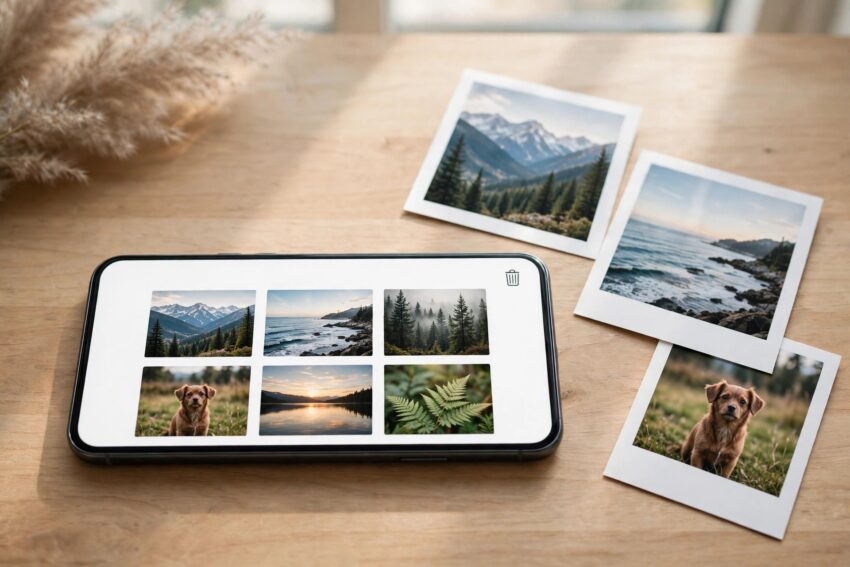
Deleting a photo by mistake feels awful. One wrong tap while clearing space, one hasty clean-up before a trip, and a picture you can never take again seems to be gone. The good news is that in most cases it is not gone at all. Both Android and iPhone keep deleted photos in a hidden trash folder for about a month, and if you back your photos up to the cloud, you often have a second or even a third chance to get them back.
This guide walks you through every realistic way to recover deleted photos on Android and iPhone in 2026, starting with the quick free methods that work most of the time, and ending with what to do when the trash is already empty. Follow the steps in order, and do the most important thing first: stop taking new photos until you have tried to recover the old ones.
First, Stop Using Your Phone for New Photos
When you delete a photo, your phone does not usually erase the file straight away. It marks the space that photo occupied as available, and the picture stays there until something new overwrites it. That is why time matters so much. Every new photo, video, app download or system update you make after the deletion reduces the chance of getting the picture back.
So before you try anything else, pause. Do not take test photos to check your camera, do not install a recovery app and then keep using the phone normally, and definitely do not factory reset the phone in a panic. A factory reset makes recovery far harder, not easier. Check the trash folders below first, because they are the fastest and safest route, and they do not depend on overwriting luck at all.
How to Recover Deleted Photos on Android
Android does not have one single recycle bin. Where your deleted photos end up depends on which gallery app you use and whether your photos are backed up to the cloud. Work through these three places in order, because a photo can sit in one trash folder and not in another.
1. Check the Google Photos Trash
Google Photos is the default gallery on Pixel phones and is installed on most other Android phones too. Open Google Photos, tap Collections (or Library on older versions), then tap Trash. You will see every photo and video you deleted, with the number of days left before each one is removed for good.
To restore a photo, touch and hold it, tap Restore, and it returns to your library and to your phone gallery. Google’s current help pages say items in the trash are permanently deleted after 30 days, and older guides that promise 60 days for backed-up photos are now out of date, so treat a month as your deadline. The app shows a countdown on each item, so trust that number over any article, including this one.
If the photo is not in the Google Photos trash, do not give up yet. The other trash folders below are separate, and emptying one does not empty the others.
2. Check Your Phone Maker’s Gallery Trash
Samsung, Xiaomi, Oppo and other manufacturers add their own trash folder on top of Google Photos. On a Samsung phone, open the Gallery app, tap the menu, then Trash. Deleted photos stay there for 30 days before they are removed permanently. Xiaomi’s Gallery app has a similar Trash or Recycle Bin under Albums, and Oppo and Vivo phones keep one in their gallery settings too.
The steps are almost always the same: open the gallery, find the trash folder, select the photos, and tap Restore. If you use both your maker’s gallery and Google Photos, check both, because a photo deleted from one app may only appear in that app’s own trash.
3. Check the Files by Google Trash
Photos deleted through a file manager rather than a gallery app can end up somewhere else entirely. Open Files by Google, tap the menu, then Trash. Deleted files stay here for 30 days. Select the photos you want and tap Restore. This step catches pictures that were stored in folders such as Downloads, WhatsApp Images or a camera folder you browsed through the file manager.
How to Recover Deleted Photos on iPhone
Apple’s system is simpler, because every iPhone uses the same Photos app. Deleted photos and videos go to the Recently Deleted album, where they stay for 30 days before they are permanently removed from all your devices.
1. Use the Recently Deleted Album
Open the Photos app, scroll down to Utilities and tap Recently Deleted. Since iOS 16 this album is locked, so you will need to unlock it with Face ID, Touch ID or your passcode. You will see each deleted item with the number of days remaining. Select the photos you want, tap Recover, and they return to your main library exactly as they were.
If you use iCloud Photos, the same album appears on your other Apple devices and on iCloud.com, so check there too. Sometimes a photo that was deleted on your phone is still visible on iCloud.com because the devices had not finished syncing, so it is worth a look before the 30 days run out.
2. Restore from an iCloud Backup
If the 30 days have passed, an older backup may still hold the photo. On your iPhone, go to Settings, tap your name, then iCloud, then Manage Account Storage, then Backups, and check the date of your last backup. If the backup was made before you deleted the photo, restoring it will bring the photo back — but restoring a backup replaces everything on the phone with the older version, so back up your current phone first and expect to lose anything created after that backup date.
Because of that trade-off, a full backup restore is a last resort, not a first step. For most people, the Recently Deleted album or iCloud.com will already have solved the problem.
Recover Photos from a Cloud or Computer Backup
If the trash folders are empty, the next place to look is any backup you already have. This is the step that saves people most often, and it is also the reason setting up automatic backup matters so much.
On Android, open Google Photos on the web at photos.google.com and sign in with the same Google account. Search the trash there as well as the main library, because a photo that never synced to the phone might still be in the cloud copy. If you use Google One, Samsung Cloud, OneDrive or Dropbox, check their trash and recycle bins too — OneDrive, for example, keeps deleted files in its recycle bin for 30 days.
On iPhone, check iCloud.com Photos and its Recently Deleted folder, and check any computer you have ever synced with. If you once copied photos to a Windows PC or a Mac through a cable, the originals may still be sitting in a folder there, untouched by anything you later deleted on the phone. A quick search of your computer for the date or location of the photo often turns up a forgotten copy.
If you have never set up a backup, now is the time to fix that for the future. Our guide on how to back up your Android phone in 2026 walks through Google One backup step by step, and it only takes a few minutes to switch on.
What About Photos Deleted from WhatsApp?
Photos sent or received on WhatsApp deserve a special mention, because they live in two places at once. If you deleted a photo from your gallery but the WhatsApp chat still shows it, open the chat, tap the photo and save it again. If the chat itself was deleted, check your WhatsApp backup: on Android, WhatsApp backs up to Google Drive, and on iPhone it backs up to iCloud.
Restoring a WhatsApp backup means uninstalling and reinstalling WhatsApp and choosing Restore when it asks, and like an iCloud restore, it takes you back to the date of that backup. Check your backup date in WhatsApp under Settings, then Chats, then Chat backup, before deciding whether it is worth it.
When the Trash Is Empty: Recovery Apps and Their Limits
If every trash folder is empty and no backup exists, data recovery apps are the last option. On Android, tools such as DiskDigger can scan the phone’s storage for photo files that have not yet been overwritten. They work best on older phones and on photos stored on a memory card, and they work worst on modern phones with encrypted storage, where deleted files are genuinely hard to reach without root access.
Be honest with yourself about the odds here. No app can guarantee recovery, and many apps that promise to recover everything are mostly advertising. Free versions usually recover low-resolution thumbnails rather than full photos, and paid versions are expensive. Never pay for a recovery app before it shows you a preview of the actual photo it found.
Also be careful about where you download such tools from. Stick to the Google Play Store, read recent reviews, and avoid any app that asks for payment before showing results or demands permissions that have nothing to do with photo recovery. If the photos are truly irreplaceable, a professional data recovery service is more reliable than any app, though it can cost far more than the phone itself.
How to Stop Losing Photos Again
Losing a photo once is painful enough, and the fix is simple enough that it is worth doing today while the lesson is fresh. Turn on automatic backup in Google Photos or iCloud Photos so every picture is copied to the cloud as soon as you take it. Check that backup is actually running, because it pauses on low battery, on mobile data, or when storage is full.
Freeing up space without deleting photos also helps, because most accidental deletions happen during rushed clean-ups. Our guide on how to free up storage on Android without deleting your photos shows safe ways to make room. And if storage warnings keep pushing you to delete things, consider a small paid cloud plan or an occasional copy to a computer or external drive — two copies in two places is the simplest rule in all of photo safety.
Frequently Asked Questions
How long do deleted photos stay recoverable?
About 30 days in the three main places: the Google Photos trash, the Files by Google trash, and the iPhone Recently Deleted album. Samsung’s Gallery trash also keeps photos for 30 days. After that they are permanently deleted, which is why it is worth checking the trash as soon as you notice a photo is missing.
Can I recover photos deleted more than 30 days ago?
Sometimes, but only from a backup. Check Google Photos on the web, iCloud.com, Google Drive, OneDrive or an older phone backup. Recovery apps can occasionally find files that have not been overwritten yet, but there is no guarantee, and the longer you keep using the phone, the lower the chance becomes.
Do I need to root my Android phone to recover photos?
Usually not for the methods in this guide. The trash folders and cloud backups need no rooting at all. Some deep-scan recovery apps ask for root access to read deleted files, but rooting voids warranties, can break banking apps and can make the phone less secure, so it is not worth doing just for a photo unless you already know what you are doing.
Are deleted photos really gone from iCloud after 30 days?
Yes. Apple says photos in Recently Deleted are permanently removed after 30 days and cannot be brought back from iCloud after that point. Your only hope then is an older iCloud or computer backup made before the deletion.
Why did my deleted photo not appear in the trash at all?
A few things can cause this. The photo may never have been backed up and was deleted from an app with no trash folder. The trash may have been emptied manually, or the 30-day window may already have passed. On Android, the photo could also be in a different app’s trash, so check Google Photos, your maker’s gallery and Files by Google before concluding it is gone.
Conclusion
Recovering deleted photos on Android and iPhone in 2026 is usually straightforward if you act quickly. Check the trash folders first — Google Photos, your phone maker’s gallery, and Files by Google on Android, or the Recently Deleted album on iPhone — because most deleted photos sit there for about 30 days waiting to be restored in two taps. If the trash is empty, check your cloud backups and any computer you have synced with, and only then consider recovery apps.
The real lesson is not about recovery at all. Automatic backup turns a stressful accident into a two-minute fix, so switch it on today, check it is working, and free up space the safe way instead of deleting in a hurry. And if you are reading this because you have already lost a photo, start with the trash folders now — every hour counts.