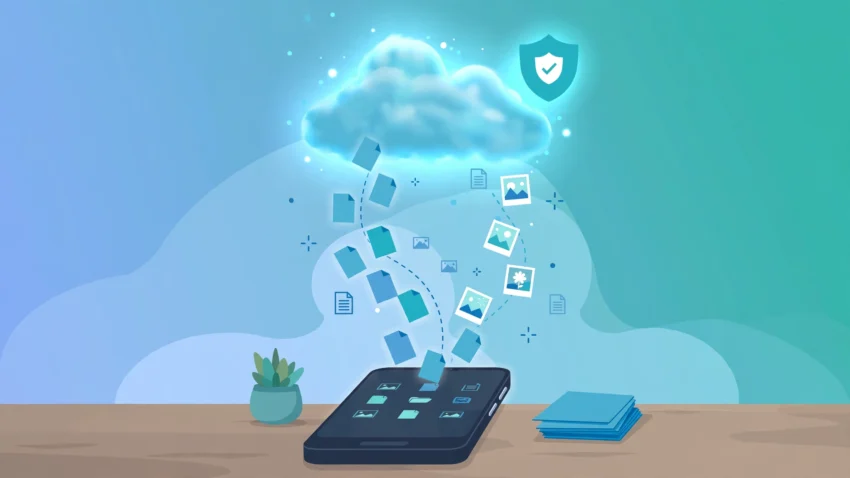
Your phone holds your photos, your chats, your contacts, and years of small settings you never think about until they are gone. A cracked screen, a stolen phone, or a failed update can wipe all of it in seconds. That is why learning how to back up your Android phone is one of the most useful things you can do this year, and it takes far less time than most people expect.
The good news is that Android in 2026 makes backups easier than ever. Google builds backup tools into almost every phone, Samsung and other makers add their own, and a few extra steps can protect the things Google does not cover, like WhatsApp chats. This guide walks through every method, step by step, so you can pick the one that fits your phone and your habits.
Why Backing Up Your Android Phone Matters
Most people only think about backups after losing something. A phone can be lost on a bus, dropped in water, or simply stop turning on one morning. When that happens, the hardware is usually replaceable. Your photos of family events, your work chats, and your saved passwords are not.
A backup also makes switching phones painless. When you sign in to a new Android phone with the same Google account, your apps, contacts, call history, and settings can move across automatically. Without a recent backup, setting up a new phone means starting from scratch, and that can take hours.
Finally, a backup protects you before a factory reset. If your phone slows down or a software problem forces a reset, a backup is the difference between a fresh start and a fresh disaster. If your storage is running low before you back up, read our guide on how to free up storage on Android without deleting your photos first, so the backup itself runs smoothly.
Method 1: Back Up with Google One (The Easiest Option)
Google One backup is built into Android and covers the essentials: app data, call history, contacts, device settings, and text messages. On most phones it is already switched on, but it is worth checking.
How to turn on Google One backup
- Open Settings on your Android phone.
- Tap Google, then tap Backup. On some phones the path is Settings > System > Backup instead.
- Turn on Backup by Google One.
- Tap Back up now to run your first backup straight away.
Your phone will then back up automatically whenever it is charging, connected to Wi-Fi, and idle for a couple of hours. Google gives every account 15 GB of free storage shared across Gmail, Google Drive, and Google Photos, so check that you have room before your first backup. If you run out of space, you can either delete old files or buy extra storage through a Google One plan.
One honest limit: Google One backup does not save everything. It does not back up your WhatsApp chats by itself, and some app data is only restored if the app developer supports it. That is why the methods below still matter.
Method 2: Back Up Your Photos and Videos with Google Photos
Photos are usually the most precious thing on a phone, and they are also the biggest files. Google Photos can back them up automatically in their original quality or in a storage-saving quality.
- Open the Google Photos app.
- Tap your profile picture, then Photos settings.
- Tap Backup and switch it on.
- Choose your backup quality: Original quality keeps every pixel but uses more storage, while Storage saver slightly compresses photos and videos to save space.
Once backup is on, every photo you take is copied to the cloud. You can then safely use the “Free up space” option in Google Photos to remove local copies from your phone, knowing the originals are stored online. If you would rather keep your photos on the device and still save space, our storage guide explains how to free up storage on Android without deleting your photos.
Method 3: Back Up WhatsApp Chats Separately
WhatsApp is the one app that catches most people out. Its chats are not included in a standard Google One backup, so you need to back them up inside WhatsApp itself.
- Open WhatsApp and tap the three dots, then Settings.
- Tap Chats, then Chat backup.
- Choose your Google account and tap Back Up.
- Turn on Include videos if you want media saved too, and set the backup frequency to Daily or Weekly so it happens on its own.
If you use two numbers on one phone, remember that each WhatsApp account needs its own backup. Our guide on how to use two WhatsApp accounts on one phone in 2026 explains how the two accounts work side by side.
Method 4: Back Up to Your Computer
A cloud backup is convenient, but a local copy on your computer is a useful second safety net, and it does not use any cloud storage at all.
- Connect your phone to your computer with a USB cable.
- On your phone, tap the USB notification and choose File Transfer.
- On your computer, open the phone’s storage and copy the DCIM folder (photos and videos), Download, and any other folders you care about to a folder on your computer.
- Eject the phone safely when the copy is done.
This method is slower and more manual, but it is completely free and it works even without an internet connection. It is a good choice before a big trip or before handing your phone in for repair.
Method 5: Use Your Phone Maker’s Own Backup Tool
Many Android brands add their own backup service on top of Google’s. Samsung phones have Samsung Cloud, which can back up home screen layouts, Samsung app data, and settings that Google does not cover. Xiaomi, OnePlus, and other brands offer similar tools in their settings menus.
These tools are handy when you stay with the same brand, because a Samsung backup restores best on another Samsung phone. If you switch brands often, Google’s backup is the more portable choice. There is nothing wrong with using both: run Google One backup for portability and your maker’s tool for the extra details.
How to Restore Your Backup on a New Phone
A backup only proves its worth when you need it, so it helps to know how a restore works before that day comes.
When you switch on a new Android phone, sign in with the same Google account you used for the backup. During setup, the phone will ask if you want to copy apps and data from an old device or restore from the cloud. Choose the cloud backup, pick the most recent one, and let the phone download your apps, contacts, and settings.
WhatsApp restores separately: install WhatsApp on the new phone, verify your number, and when it finds a Google Drive backup, tap Restore. Your chats and media will return. Google Photos restores nothing by itself, since your photos simply appear in the app once you sign in, because they live in the cloud already.
Common Backup Mistakes to Avoid
Waiting for a warning. Phones rarely warn you that backups are off. Check your backup status once a month, especially after a software update, which can sometimes change settings.
Backing up on mobile data only. Photos and videos are large. Let backups run on Wi-Fi, or you may burn through your data plan in a single afternoon.
Forgetting to check storage. A backup fails silently when Google storage is full. If your backup has not run in weeks, open Google One and check the storage meter first.
Keeping only one copy. The safest rule is simple: one copy in the cloud and one copy somewhere else, such as your computer. Two copies in two places survive almost any accident.
Backing up a phone that is already dying. If your battery drains in minutes or the phone overheats, fix that first. A backup that stops halfway is no backup at all. Our guide on how to make your Android battery last longer covers the settings that help most.
How Often Should You Back Up?
For most people, the answer is: let it happen automatically, and check it monthly. Google One backup and Google Photos run on their own once switched on. WhatsApp should be set to daily or weekly automatic backup. A manual copy to your computer is worth doing once every few months, or right before any big change like a factory reset, a repair, or a new phone.
If you take a lot of photos or run a business from your phone, shorten that to a weekly manual check. The five minutes it takes are cheap insurance against losing work you cannot redo.
Frequently Asked Questions
Does Google back up my Android phone automatically?
On most phones, yes, once backup is switched on in Settings. Google One backs up app data, call history, contacts, settings, and text messages automatically when the phone is charging, on Wi-Fi, and idle. Photos back up separately through Google Photos, and WhatsApp needs its own backup setting inside the app.
Is Google One backup free?
The basic backup is free and uses the 15 GB of storage that comes with every Google account. That storage is shared with Gmail and Google Drive, so heavy photo users may need to buy extra space through a Google One plan.
Can I back up my Android phone without a Google account?
You can copy your files to a computer with a USB cable, or use your phone maker’s backup tool with that brand’s account. Some third-party apps also offer local backups. But without a Google account, you lose the automatic cloud backup and the easy restore when you switch phones.
How do I know my backup actually worked?
Open Settings > Google > Backup and check the date of the last backup. If it says “Backed up” with today’s date, it worked. In Google Photos, check that the backup status shows as complete. If either one shows an error, check your Wi-Fi connection and your Google storage first.
Will a backup save my apps and passwords?
Google One backup saves your list of installed apps and their data, and it restores them on a new phone when you sign in. Saved passwords are handled separately through your Google account and Chrome, so make sure you are signed in to both. A password manager can also help; see our guide to the best password manager apps in 2026.
Conclusion
Learning how to back up your Android phone takes about ten minutes, and it protects the things that matter most on your device. Switch on Google One backup, turn on Google Photos, back up WhatsApp separately, and keep a second copy on your computer for the files you cannot afford to lose.
Do it today, while your phone is working fine. The best time to back up your Android phone is before you need it, not after it is too late.