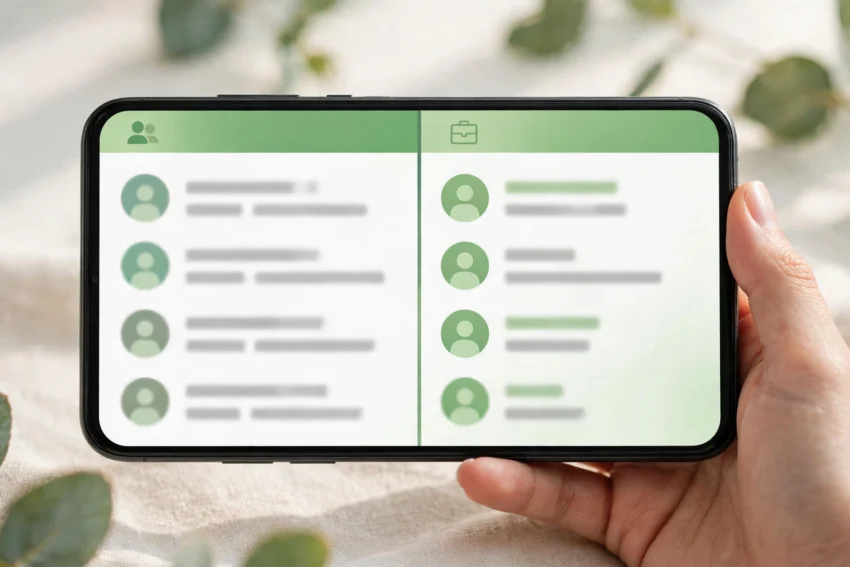
Carrying two phones just to keep work and personal chats apart is a hassle most of us would rather avoid. The good news is that you no longer need a second handset. In 2026, running two WhatsApp accounts on one phone is officially supported, and there are several safe ways to do it depending on your phone and your needs.
The one rule that applies to every method is simple: each WhatsApp account needs its own phone number. WhatsApp ties an account to a number, not to a SIM slot, so a second SIM, a dual-SIM phone, or an eSIM all work. What you cannot do is register two accounts with the same number. Once you have a second number, here are the four methods that actually work.
Why You Might Need Two WhatsApp Accounts
For most people, the reason is the line between work and home. A shop owner might take customer orders on one number and talk to family on another. A freelancer may want client messages to stop buzzing after office hours. Students often keep one number for university groups and another for friends.
Whatever your reason, keeping the two accounts separate means each one can have its own profile photo, notification sound, privacy settings, and chat backup. Your work contacts never see your personal display picture, and your personal chats stay quiet while you are working. That separation is the whole point, and it is worth setting up properly instead of relying on a risky shortcut.
Method 1: Use WhatsApp’s Built-In Multi-Account Feature (The Official Way)
This is the method to try first. Since October 2023, WhatsApp for Android has let you add a second account inside the same app and switch between the two without logging out. The same feature reached iPhone in March 2026, so it now works on both platforms.
What You Need
You need a second phone number that can receive a six-digit verification code by SMS or call. That number can sit on a second SIM card, in a dual-SIM phone, or on an eSIM — WhatsApp only cares that the number can receive the code. You also need the latest version of WhatsApp, so update the app from the Play Store or App Store before you start. The feature supports a maximum of two accounts, and the second account can only be created on your main phone, not on a linked tablet or computer.
How to Add the Second Account
- Open WhatsApp and tap the three-dot menu, then go to Settings.
- Tap the small arrow or plus icon next to your name at the top, then tap Add account.
- Tap Agree and continue, then enter the second phone number with its country code.
- Enter the six-digit code WhatsApp sends to that number.
- Set up the profile for the second account — name, photo, and about text.
How to Switch Between Accounts
Switching takes seconds. Open Settings and tap the arrow next to your name, or use the Switch accounts option in the menu, and pick the account you want. Each account keeps its own chats, notification settings, and privacy settings, so you can silence work notifications at night while your personal account keeps buzzing. The only real limit is the two-account cap: if you need a third number, you will need one of the methods below.
Method 2: WhatsApp Plus WhatsApp Business
If you run a small business, this is often the neatest setup. Install both the regular WhatsApp app and WhatsApp Business from the Play Store, register one number in each, and you have two fully separate apps on your home screen. There is no switching at all — each app has its own icon, its own notifications, and its own chat list.
WhatsApp Business adds genuinely useful extras for sellers: a business profile with your address and opening hours, quick replies for common questions, automated greeting messages, and labels to organise customer chats. That is why many shop owners in Pakistan and the UAE run their shop number on Business and keep their personal number on the regular app.
One thing to note: the built-in account switcher described in Method 1 is not available inside the WhatsApp Business app. That does not matter here, because the two apps are independent. Also, remember that two apps mean two sets of backups and two lots of storage, so check your free space now and then. If your phone is already full, our guide on how to free up storage on Android without deleting your photos can help you clear room first.
Method 3: Use Your Phone’s Dual App or Clone Feature
Almost every Android phone maker ships a built-in cloning tool, and it works well for WhatsApp. Samsung calls it Dual Messenger, Xiaomi calls it Dual Apps, OnePlus calls it Parallel Apps, and Oppo and Vivo have an App Clone option. The idea is the same: the phone creates a second copy of WhatsApp with its own icon, and you register the second number in that copy.
How to Set It Up on Samsung
- Go to Settings, then Advanced features, then Dual Messenger.
- Turn on the switch next to WhatsApp.
- A second WhatsApp icon appears on your home screen, usually marked with a small badge.
- Open the cloned app and register your second number as normal.
On Xiaomi, the path is Settings, then Apps, then Dual Apps. On OnePlus, it is Settings, then Apps, then Parallel Apps. The names differ, but the steps are nearly identical. The cloned app runs independently, so you can receive messages on both numbers at the same time without switching.
This method is handy if your phone does not yet have the official multi-account feature, or if you want three numbers on one device — one in the main app, one added through the switcher, and one in the clone. Just be aware that cloned apps can use more battery and storage than a single app, so keep an eye on both. Our guide on how to make your Android battery last longer has settings that help when you run two chat apps all day.
Method 4: Use an Android Work Profile
This is the least-known option, and it suits people whose employer manages their work phone. An Android work profile creates a separate, managed space on the phone with its own copy of apps, including WhatsApp. Your employer can install and manage the work copy while your personal apps stay private.
Setting it up usually involves your company’s device management app or your IT department, so it is not a do-it-yourself option for most people. But if your office already uses one, it is the cleanest split of all: work WhatsApp lives in the work profile, personal WhatsApp lives outside it, and the two never mix.
Which Method Should You Choose?
Here is a quick comparison to help you decide:
| Method | Best for | Accounts | Switching |
|---|---|---|---|
| Built-in multi-account | Most people | 2 in one app | Tap to switch |
| WhatsApp + Business | Shop owners and sellers | 2, separate apps | No switching needed |
| Dual app / clone | Extra numbers, older phones | 2 or more | Separate icons |
| Work profile | Company-managed phones | 2, fully separated | Separate spaces |
If you only need two numbers and your phone supports it, start with Method 1. It is official, free, and the least likely to cause problems. If you sell online or take customer orders, Method 2 is the better fit because of the business tools. Method 3 is the fallback when you need more than two numbers or the official feature is missing on your phone.
What to Avoid: Modified WhatsApp Apps
You will see apps like GB WhatsApp, FM WhatsApp, and similar modified versions advertised as a way to run extra accounts with bonus features. Avoid them completely. WhatsApp’s own guidance is direct: your messages are only secure and private when you use the official app, and using modified versions breaks its Terms of Service. Accounts caught using them risk a temporary or permanent ban, and those apps can expose your chats and contacts to whoever built them.
The same warning applies to random “dual WhatsApp” apps from unknown developers on the Play Store. If it is not made by your phone manufacturer or by WhatsApp itself, do not hand it your phone number. A banned number or a leaked chat history is a high price for a feature your phone probably already includes for free.
Common Problems and Fixes
The “Add account” option is missing. Update WhatsApp to the latest version first. If it is still missing, restart your phone and check again — the feature rolls out in stages, and an old version is the most common cause.
The verification code never arrives. Make sure the second number can actually receive SMS or calls. Switch between Wi-Fi and mobile data, and try the “call me” option instead of SMS. Remember that each number needs to be able to receive the code on its own — you cannot verify a number you have no access to.
Notifications from the second account are silent. Each account has its own notification settings. Open the second account, go to Settings, then Notifications, and check the message and group tones. On Samsung clones, also check that the cloned app is allowed to run in the background.
Backups get mixed up. Keep a separate Google account or backup routine for each number if you want their chat histories to stay independent. WhatsApp backs up per account, but using the same Google account for both can cause confusion when you restore on a new phone. Speaking of keeping accounts safe, a password manager is the easiest way to keep track of all the accounts tied to both numbers — see our roundup of the best password manager apps in 2026 for options that work on Android and iPhone.
Frequently Asked Questions
Can I have two WhatsApp accounts on one phone for free?
Yes. WhatsApp’s built-in multi-account feature is free, and so is WhatsApp Business and your phone’s dual app tool. You only need a second phone number; there is no subscription or paid app required.
Do I need two SIM cards?
Not necessarily. You need two phone numbers, but the second number can be on an eSIM or a dual-SIM phone. WhatsApp verifies the number by SMS or call, so any number that can receive the code will work.
Can I use the same number for two WhatsApp accounts?
No. One number equals one account. Each account must be registered with its own unique phone number.
Is it safe to use two WhatsApp accounts on one phone?
Yes, as long as you stick to the official methods — the built-in account switcher, WhatsApp Business, or your phone maker’s dual app feature. Avoid modified apps like GB WhatsApp, which can get your account banned.
How many WhatsApp accounts can I have on one phone?
The official feature supports a maximum of two accounts in one app. Combining the official switcher with WhatsApp Business or a cloned app lets you run more numbers, but each still needs its own phone number.
Conclusion
Two WhatsApp accounts on one phone is no longer a workaround — it is a supported feature on both Android and iPhone in 2026. Start with the built-in multi-account option, use WhatsApp Business if you sell anything, and fall back on your phone’s dual app feature if you need more than two numbers. Keep both numbers able to receive verification codes, set each account’s notifications separately, and stay away from modified apps that put your account at risk.
Set it up once, and the work-life split takes care of itself: your shop or office messages arrive in one place, your family and friends in another, and you only carry one phone.