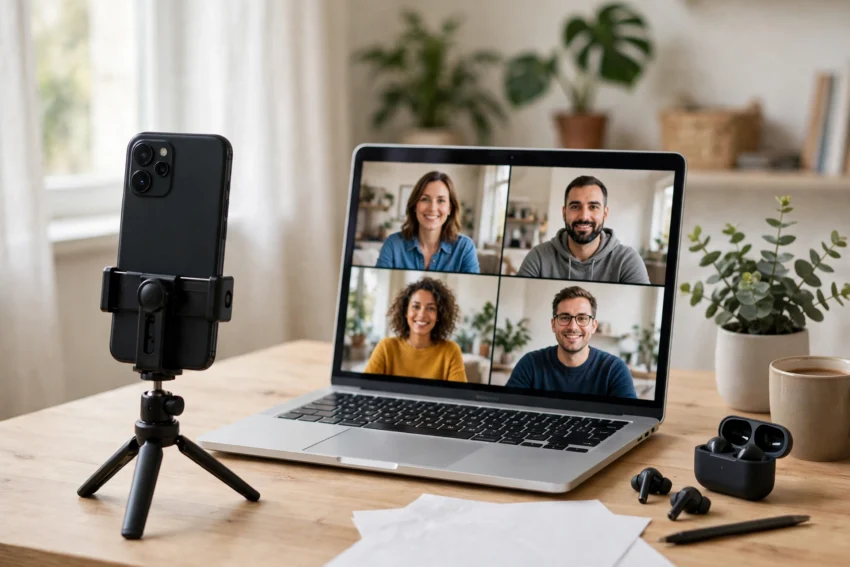
Most laptop webcams are still stuck at 720p, with dull colours and grainy video in anything less than perfect light. Your phone, on the other hand, probably has a camera that cost hundreds of dollars to engineer, with a large sensor, optical stabilisation and software that handles tricky lighting far better than any laptop camera. If you spend your days on Zoom, Google Meet or Microsoft Teams calls, that difference shows on the other person’s screen straight away.
The good news is that in 2026 you no longer need a tangle of cables or a paid app to make it work. Windows 11 can use an Android phone as a wireless camera, Android itself has a built-in USB webcam mode, and iPhones work as a Mac webcam with nothing to install. This guide walks through every method, step by step, for Android and iPhone, so you can pick the one that fits the computer you already own.
Why Your Phone Beats a Built-In Laptop Webcam
A much better camera sensor
A flagship phone camera gathers far more light than the tiny sensor in a laptop lid. That means less noise in a dim room, more natural skin tones and a sharper picture even when you are not sitting next to a window. Most phones also switch lenses, so you can pick a slightly wider view if your desk is tight.
Better software processing
Phones apply smart processing to every frame: balancing bright windows behind you, softening harsh shadows and keeping your face in focus as you move. A laptop webcam does almost none of this. The result is that you look clearer and more professional without buying any new hardware.
It costs nothing extra
A decent external webcam costs real money, and a cheap one is often no better than the camera already in your laptop. Your phone is already in your pocket, and the built-in methods below are free. Even the third-party apps have usable free versions.
Before You Start: What You Will Need
You do not need much, but a little preparation saves a failed first call. First, keep your phone charged or plugged in, because streaming video drains the battery faster than normal use. Second, put the phone somewhere stable at eye level: a small tripod, a phone stand or even a stack of books works, and the camera should point at your face, not up your nose. Third, turn on Do Not Disturb so a call or a notification banner does not pop up on screen mid-meeting. Finally, test the setup once before an important call. Open your meeting app, pick the phone as the camera, and check how you look.
Method 1: Use an Android Phone as a Webcam on Windows 11 (Wireless)
This is the easiest method if you have a Windows 11 PC and an Android phone, because Microsoft builds it into the operating system. The feature is called “Use as connected camera” and it works through the Link to Windows app.
What you need
You need a PC running Windows 11, an Android phone running Android 10 or later, and the Link to Windows app on the phone updated to version 1.24022.0 or later. Both devices should be on the same Wi-Fi network and signed in with the same Microsoft account. Some Samsung phones have Link to Windows built in, so you may not need to install anything at all.
Setup steps
- On your PC, open Settings and go to Bluetooth and devices, then Mobile devices.
- If your phone is not linked yet, click Add device and scan the QR code on the screen with your phone. Follow the prompts to pair it.
- Select your phone in the list and turn on “Use as connected camera”.
- Open Zoom, Teams, Google Meet or the Windows Camera app and pick your phone from the camera list. It usually appears as your phone’s name or as “Windows Virtual Camera”.
The feed is wireless, so you can move the phone around the room, but keep it within a few metres of the PC and on the same network. If the camera option does not appear, check for Windows updates first, because the feature depends on a recent version of Windows 11, and make sure camera permission is turned on for Link to Windows in your phone’s settings.
Method 2: Use an Android Phone as a Webcam with a USB Cable
If you prefer a wired connection, or your Wi-Fi is unreliable, Android has a built-in webcam mode that needs no app at all. It arrived with Android 14 (the QPR1 update), so it works on Pixel phones and a growing number of other Android phones running Android 14 or later. Support can vary by manufacturer, so if the option is missing on your phone, use Method 1 or Method 3 instead.
Setup steps
- Connect your phone to the PC with a USB cable, ideally a USB-C cable that supports data, not just charging.
- A notification appears on the phone saying “Charging this device via USB”. Tap it.
- Under “Use USB for”, choose “Webcam”.
- On the PC, open your meeting app and select your phone as the camera.
The wired connection has the lowest delay of any method here, which matters if you also use the feed for streaming or recording, and it charges the phone while you use it. One small catch: while the phone is in webcam mode you cannot use it as a normal phone at the same time, so keep a second device nearby if you expect an urgent call.
Method 3: Use an iPhone as a Webcam on a Mac (Continuity Camera)
Apple’s version of this trick is called Continuity Camera, and it is built into iOS and macOS. It needs an iPhone XR or later running iOS 16 or newer, and a Mac running macOS Ventura or later. Both devices must be signed in with the same Apple ID, with Wi-Fi and Bluetooth turned on.
Setup steps
- Mount the iPhone on top of your Mac, rear camera facing you. Apple sells a small magnetic mount for this, but any stand at eye level works.
- Open FaceTime, Zoom, Teams or any video app on the Mac.
- Click the camera menu in the app and choose your iPhone. The phone’s screen will show that it is connected as a camera.
Continuity Camera also unlocks a few extras. Centre Stage keeps you framed as you move around, Portrait mode blurs the background, Studio Light brightens your face in a dark room, and Desk View shows your desk from above using the ultra-wide camera, which is handy for showing notes or a product during a call.
Method 4: Third-Party Webcam Apps (Any Phone, Any Computer)
If the built-in options do not fit your setup — for example, you have an iPhone and a Windows PC, or an older Android phone — a third-party app fills the gap. These apps install a small client on the computer and stream the phone’s camera over Wi-Fi or USB.
DroidCam is the best-known option for Android. It works with Windows and Linux, has a free version, and lets you pick the front or rear camera and adjust resolution. Camo, from Reincubate, works with both iPhone and Android on Windows and Mac, and gives you fine control over focus, exposure and framing. Iriun Webcam is another free choice that supports Android and iOS on Windows, Mac and Linux. EpocCam is a solid pick for iPhone users on Windows or Mac.
The setup is the same in most cases: install the app on your phone, install the matching client on your computer, connect both to the same Wi-Fi network or with a USB cable, and then select the app’s virtual camera inside your meeting app. Free versions sometimes add a watermark or limit resolution, so check that before an important call, and only download these apps from the official Play Store, App Store or the developer’s own website.
Android vs iPhone: Which Method Should You Pick?
If you have an Android phone and a Windows 11 PC, start with the built-in connected camera feature in Method 1. It is wireless, free and takes about five minutes to set up. If you stream or record and need the lowest possible delay, use the USB webcam mode in Method 2 instead. If you have an iPhone and a Mac, Continuity Camera in Method 3 is the obvious choice, because it is built in and adds useful extras. If your devices do not match any of those combinations, a third-party app from Method 4 will cover almost every mix of phone and computer.
Tips for Looking Good on Camera
Use the rear camera
The rear camera on almost every phone is better than the front one. It takes a little more effort to frame the shot, since you cannot see the screen, but the jump in quality is worth it. Use the front camera only if you need to see yourself while you talk.
Light your face, not your background
Sit facing a window or a lamp, with the light falling on your face. Light coming from behind you turns you into a silhouette, which is the single most common reason people look bad on calls. A cheap ring light or a desk lamp pointed at a white wall works well in the evening.
Keep the phone at eye level
A camera looking up at you is unflattering and distracting. Raise the phone so the lens is level with your eyes, about an arm’s length away. This also keeps your shoulders and head framed the way people expect in a meeting.
Mind your audio
A great picture with bad audio still makes a bad call. Your phone’s microphone will pick up room echo, so use earbuds or a headset when you can. If you want to record the call as well as join it, our guide to How to Record Your Screen on Android and iPhone in 2026 walks through the built-in recording tools on both platforms.
Keep the connection stable
Wireless methods depend on your Wi-Fi. If the picture freezes, move closer to the router, close apps that are using the network, or switch to a USB cable. If your phone is also sharing its internet connection, read How to Use Phone as Mobile Hotspot in 2026: Android and iPhone Guide first, because running a hotspot and a camera stream at the same time can slow both down. And if the phone keeps dropping off the PC, the fixes in How to Fix Bluetooth Problems on Android and iPhone in 2026 often help, since the pairing behind these features uses Bluetooth as well as Wi-Fi.
Common Problems and Quick Fixes
If the phone does not appear in the camera list, close the meeting app completely and open it again, then check the camera permission for the app on the phone. If the video lags, switch from Wi-Fi to a USB cable, or lower the resolution in the webcam app’s settings. If the picture is dark, add light in front of you rather than raising the phone’s brightness, which only adds noise. If the phone gets hot, take it out of its case and keep it out of direct sunlight; streaming video is hard work for a phone, and heat is normal in short bursts but a warning sign if it keeps climbing. If the battery drains fast, plug the phone in while you use it, and remember that USB webcam mode charges the phone at the same time.
Frequently Asked Questions
Is it free to use my phone as a webcam?
Yes, in most cases. The built-in methods on Windows 11, Android and iPhone cost nothing. Third-party apps such as DroidCam and Iriun Webcam have free versions, though some charge for higher resolution or to remove a watermark.
Does it work with Zoom, Teams and Google Meet?
Yes. Once the phone is connected, it appears as an ordinary camera in Windows or macOS, so any app that can use a webcam can use it, including Zoom, Microsoft Teams, Google Meet, Discord, Slack and OBS Studio.
Can I use the front camera instead of the rear camera?
Yes, every method above lets you switch between the front and rear cameras. The front camera is easier to frame because you can see yourself on screen, but the rear camera gives a noticeably sharper picture.
Will using my phone as a webcam drain the battery?
Yes, video streaming uses the camera, the processor and the network all at once, so the battery drops faster than usual. Plug the phone in during long calls, and use USB webcam mode if your phone supports it, because it charges while it streams.
Is it safe? Can the apps see my photos?
A webcam app only needs camera and microphone permission. It does not need access to your photos or messages, so do not grant those permissions if an app asks for them. Stick to the built-in features or well-known apps from the official app stores, and turn the camera permission off again when you are done if you want to be extra careful.
Conclusion
You do not need to buy a webcam to look good on video calls in 2026. Your phone already has a better camera than most laptops, and the built-in tools on Windows, Android and iPhone make the setup quick and free. Android users on Windows 11 should start with the connected camera feature, or the USB webcam mode for the most stable feed. iPhone users with a Mac should use Continuity Camera. Everyone else can pick a trusted third-party app and be up and running in minutes. Set the phone at eye level, light your face, plug it in, and test it once before your next call. Your colleagues will notice the difference immediately.