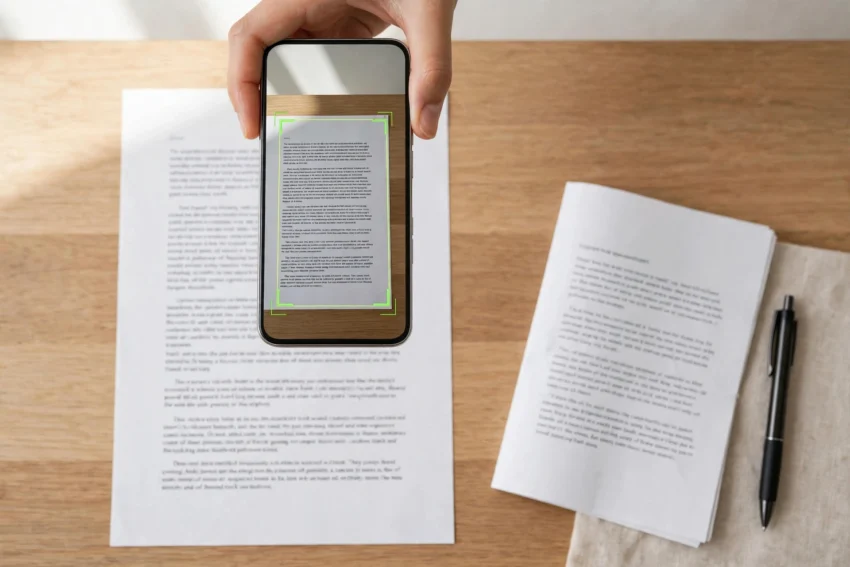
Paper has not gone away. Receipts, contracts, school forms, handwritten notes, old photographs and ID documents still land on our desks, and the fastest way to deal with them is the camera already in your pocket. A good scanner app does far more than take a photo: it finds the edges of the page, straightens it, cleans up shadows, turns the result into a searchable PDF and, in the best cases, reads the text so you can search or copy it later.
The good news is that in 2026 you do not need to pay for any of that. The best free scanner apps in 2026 cover everything from a one-off receipt to a fifty-page contract, and both Android and iPhone now include a capable scanner built in, so many people never need to install anything at all. The differences that matter are smaller than the app stores make them look: whether text recognition is included for free, whether your scans carry a watermark, and whether your documents are processed on your phone or sent to a company’s servers.
This guide compares the free scanner apps that are actually worth installing in 2026, including the built-in options, and explains which one fits which job.
What to Look for in a Free Scanner App
Before downloading anything, it helps to know what separates a good scanner from a camera with a filter.
Automatic edge detection. The app should find the corners of the page by itself and crop to them. Every app on this list does this well, and it is the single biggest difference between a scan and a photo.
Text recognition (OCR). OCR turns the words in your scan into real, searchable text. It is what makes a scanned contract searchable and a scanned receipt copyable. Some apps include it free, others lock it behind a subscription, so check before you commit to one.
Clean PDF export. A scan should export as a proper multi-page PDF, not a zip of images. All the apps below export PDFs, but some free tiers limit the number of pages or add a watermark.
Watermarks and ads. Several popular scanners stamp a watermark on free exports or show frequent ads. If you are scanning documents for work or school, a watermark looks unprofessional, so this matters more than it sounds.
Privacy. This is the real dividing line in 2026. Some apps process everything on your phone and never upload a page. Others send every scan to their cloud for processing and storage. For bank statements, medical forms and contracts, on-device processing is worth choosing deliberately.
The Best Free Scanner Apps in 2026 at a Glance
- Adobe Scan — best free scanner overall; free OCR, no watermark, on Android and iPhone.
- Google Drive scanner — best built-in option on Android; free, no watermark, saves straight to Drive.
- Apple Notes scanner — best built-in option on iPhone; free, on-device, nothing to install.
- Genius Scan — best for privacy; scans stay on your device by default, no account needed.
- SwiftScan — best for speed and multi-page documents; very fast batch scanning.
- CamScanner — most features in the free tier, but free exports carry a watermark and OCR is paid.
- Microsoft 365 Copilot — the official replacement for the retired Microsoft Lens.
1. Adobe Scan — Best Free Scanner Overall
Adobe Scan remains the safest default pick in 2026, and the reason is simple: the free version is genuinely generous. Scans are unlimited, text recognition is included, and free exports carry no watermark. Point the camera at a page and the app detects whether it is a form, a receipt, a whiteboard or a business card, then adjusts the capture to match. The resulting PDFs are consistently among the cleanest in this category, with sharp text and reliable search.
The trade-offs are the Adobe account and the cloud. You need to sign in, scans are stored in Adobe’s cloud, and the app regularly suggests paid Acrobat features. If you already live in Adobe’s ecosystem, or you want the best free quality without paying, none of that is a dealbreaker. For students and office workers who scan every day, Adobe Scan is still the first app to try.
2. Google Drive Scanner — Best Built-in Option on Android
Many Android owners skip this one entirely, which is a shame, because it is already on their phone. Open the Google Drive app, tap the scan button, and you get automatic cropping, clean PDF export and instant backup to your Drive account. There is no extra install, no account beyond the Google account already on the phone, and no watermark.
It is not the most powerful scanner here. There are no batch workflows, no advanced naming rules and only basic text recognition once the file is in Drive. But for the occasional receipt, form or letter, it is the fastest route from paper to PDF on Android, and the scan is backed up the moment you save it. If you already store documents in Google Drive, start here before installing anything else.
3. Apple Notes Scanner — Best Built-in Option on iPhone
iPhone and iPad owners have the same advantage. Open a note in Apple Notes, tap the attachment button and choose Scan Documents, and the phone captures the page, straightens it and saves it as a PDF. Text recognition runs on the device through Live Text, scans stay on your phone unless you share them, and there is nothing to install and nothing to pay.
The limits are scope and platform. There are no batch workflows, no cloud folders beyond iCloud, and no Android version. Scans live inside Notes until you share them out as PDFs. For casual iPhone scanning — a receipt here, a school form there — it is all most people will ever need, and it costs nothing.
If you scan handwritten notes often, pairing the Notes scanner with a good notes app makes the workflow much smoother. Our guide to the best note-taking apps in 2026 covers the apps that handle scanned pages and handwritten notes best.
4. Genius Scan — Best for Privacy
Genius Scan is the quiet workhorse of this list. It scans fast, finds page edges reliably and exports clean PDFs, but its real selling point is privacy: processing happens on your device by default, cloud sync is strictly optional, and no account is required at all. That makes it the natural choice for legal, medical or financial documents you would rather not upload to a server.
The free tier covers unlimited scanning and PDF export. Text recognition and some export options sit behind a one-time paid upgrade rather than a subscription, which is refreshingly honest pricing in a category full of monthly plans. If privacy is your priority and you are willing to pay once for OCR, Genius Scan is the pick.
5. SwiftScan — Best for Speed and Multi-Page Documents
SwiftScan, formerly known as Scanbot, is built for speed. Automatic edge detection, one-tap multi-page scanning and high-quality PDF or JPG output at 200 dpi and above make it the best choice when you have a stack of pages to get through — a rental agreement, a textbook chapter or a pile of receipts at tax time.
The free tier handles everyday scanning well, with advanced features such as text recognition and automatic uploads to cloud folders in the paid tier. It also offers a lifetime purchase option instead of only a subscription, which suits people who dislike monthly payments. If you scan in bulk, the few seconds SwiftScan saves on every page add up fast.
6. CamScanner — Most Features, but Watch the Free Tier
CamScanner is the power-user option, with the widest feature set in this roundup: batch scanning, text extraction, annotations, document management, faxing and export to Google Drive, Dropbox and Box. Its image filters are also genuinely strong on poor-quality or crumpled originals, and its text recognition covers dozens of languages.
The free version is the price you pay for all of that. Expect frequent ads, and free exports carry a watermark unless you upgrade to the premium plan, which costs around $4.99 a month. Text recognition is also a paid feature. There is a history worth knowing too: the app was briefly removed from Google Play in 2019 after security researchers found a malicious component in an advertising library, though the app was cleaned up and returned. For casual use the free tier is workable, but for anything professional the watermark alone is reason to pick Adobe Scan or Genius Scan instead.
7. Microsoft 365 Copilot — The Replacement for Microsoft Lens
Microsoft Lens was for years the best truly free scanner for office workers, with one-tap export of scans into Word, Excel, PowerPoint and OneNote and no paid tier at all. That era is over. Microsoft retired the Lens app during 2025, removed it from the App Store and Google Play, and disabled new scans in it, directing users to the Microsoft 365 Copilot app instead.
The Copilot app does include scanning, and it remains free with a Microsoft account, with text recognition included and scans saved to OneDrive. But it is not a like-for-like replacement: it cannot save scans directly into Word, OneNote or PowerPoint the way Lens could, and it drops some accessibility features such as the read-aloud mode. If you were a Lens user, the Copilot app is Microsoft’s official path forward, but if editable Word or Excel output matters to you, Adobe Scan or SwiftScan will serve you better.
How to Get a Clean Scan Every Time
The app matters less than the technique. A few habits make the difference between a scan you can read and one you have to redo.
Use flat, even light. Place the page on a plain, dark surface near a window or under a ceiling light. Avoid shadows from your hands or phone, and turn off the flash unless the room is genuinely dark — flash creates a bright spot in the middle of the page.
Hold the phone parallel to the page. The app can correct a small angle, but a straight overhead shot gives the sharpest text. Rest your elbows on the desk if your hands shake.
Scan in batches. For multi-page documents, capture every page first and reorder or retake pages afterwards. Most apps let you add pages to one PDF as you go, which is much faster than creating a new file per page.
Check the text, not just the picture. Zoom into the scanned page before you save it. Small print, signatures and faint pencil marks are the things that come out unreadable, and it is far easier to retake a page now than to discover the problem when you need the document.
Name files properly. A scan called “Scan_2026-11-21” is useless in six months. Rename it to what it is — “Electricity-Bill-Nov-2026” or “Rental-Agreement-Dubai” — the moment you save it. This is also where a tidy phone helps: our guide on how to free up storage on Android without deleting your photos explains how to keep scanned PDFs and photos organised without running out of space.
Privacy: Where Do Your Scans Actually Go?
It is worth pausing on this, because a scanner app handles your most sensitive paper. Adobe Scan, CamScanner and the Microsoft 365 Copilot app all send scans to their companies’ cloud services for processing or storage. That is normal for cloud-backed apps, and it is what makes syncing across devices work, but it means your documents sit on someone else’s servers.
Genius Scan and the built-in Apple Notes and Google Drive scanners keep the processing on the device by default, with cloud storage only if you choose it. As a rule of thumb, scan identity documents, contracts and medical paperwork with an on-device app, and keep the cloud scanners for receipts, articles and anything you would not mind a stranger reading. Whatever you choose, check the app’s settings once: turn off any automatic cloud upload you do not want, and delete old scans you no longer need.
Frequently Asked Questions
What is the best free scanner app in 2026?
For most people, Adobe Scan is the best free scanner app in 2026: unlimited free scans, text recognition included, no watermark, and available on both Android and iPhone. If you only scan occasionally, the built-in scanner in Apple Notes or Google Drive is free and already on your phone.
Is there a completely free scanner app with no watermark?
Yes. Adobe Scan, Google Drive’s scanner and Apple Notes all produce watermark-free scans for free. CamScanner’s free tier adds a watermark, and Genius Scan and SwiftScan keep their advanced features behind paid upgrades but do not watermark basic scans.
Can I scan documents without installing an app?
Yes. On iPhone, use the scanner inside Apple Notes or the Files app. On Android, use the scan button in the Google Drive app. Both are free, produce clean PDFs and need no extra download.
Is Microsoft Lens still available?
No. Microsoft retired Microsoft Lens and removed it from the App Store and Google Play, and the app can no longer create new scans. Microsoft now points users to the scanning feature inside the Microsoft 365 Copilot app.
Are free scanner apps safe for sensitive documents?
It depends on the app. On-device scanners such as Genius Scan and Apple Notes keep your pages on your phone, which is the safest option for contracts, ID documents and medical forms. Cloud-based scanners upload your pages to their servers, so read the privacy policy and avoid them for your most sensitive paperwork.
The Bottom Line
The best free scanner apps in 2026 prove that you do not need a physical scanner, or a paid subscription, to keep your paperwork under control. Start with the scanner already on your phone — Apple Notes on iPhone or Google Drive on Android — and only install a third-party app when you need something more. For most people that something more is Adobe Scan, with its free text recognition and clean, watermark-free PDFs. Choose Genius Scan when privacy matters most, SwiftScan when you scan in bulk, and the Microsoft 365 Copilot app only if you are already deep in Microsoft’s world.
Pick one, scan the pile of paper on your desk today, and give your future self a searchable PDF instead of a drawer full of fading receipts. And once your documents are digital, keep your phone running smoothly — our guide on how to stop your phone from overheating in 2026 covers the habits that keep a busy phone cool while you scan, sync and share all day.