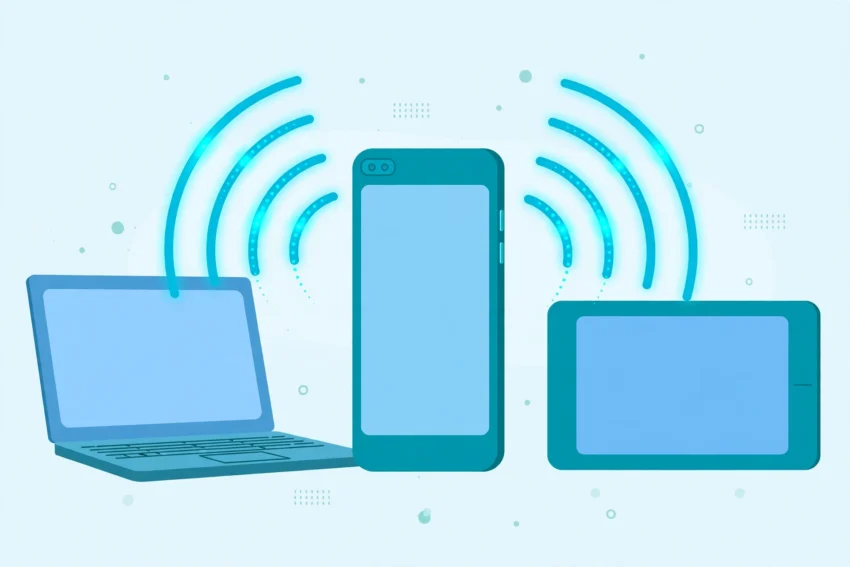
Your phone can do much more than make calls and run apps. When your home Wi-Fi goes down, when you are travelling, or when your laptop needs internet in a place with no router, your phone can share its mobile data connection with other devices. This feature is called a mobile hotspot, and learning how to use phone as mobile hotspot is one of the most useful skills for any smartphone owner in 2026.
A hotspot turns your phone into a small, portable Wi-Fi router. Your laptop, tablet, or a friend’s phone connects to it just like any other Wi-Fi network, and all of its internet traffic runs through your mobile data plan. The setup takes less than a minute on both Android and iPhone, and once you know where the switch lives, you will use it far more often than you expect.
This guide walks you through the full process: turning the hotspot on, connecting other devices, keeping it secure, saving battery and data, and fixing the problems people run into most often.
What Is a Mobile Hotspot and How Does It Work?
A mobile hotspot uses your phone’s mobile data connection — 4G or 5G — and broadcasts it as a Wi-Fi network that other devices can join. Your phone acts as the router, and every device connected to it shares your data allowance.
Most modern phones support three ways of sharing their connection:
- Wi-Fi hotspot: the most common method. Your phone creates a Wi-Fi network, and other devices join with a password.
- USB tethering: you connect your phone to a laptop with a cable. This is usually the fastest and most stable option, and it charges your phone at the same time.
- Bluetooth tethering: a slower option that uses very little battery. It works well for a quick connection when Wi-Fi is not available.
For most people, the Wi-Fi hotspot is the right choice. It supports several devices at once, works with laptops, tablets, smart TVs and other phones, and needs no cables.
Before You Start: Check Your Mobile Plan
Before you switch the hotspot on, it is worth checking two things about your mobile plan.
First, confirm that your plan allows hotspot use. Most plans in 2026 include it, but some cheaper plans either block it or count hotspot data separately from your normal data. A quick look at your carrier’s app or website will tell you. If hotspot use is not included, your phone may still turn it on, but the connection may not work — or you could face extra charges.
Second, check how much data you actually have. Hotspot data comes out of the same allowance as everything else on your phone, and laptops use far more data than phones. A laptop can quietly download updates, sync cloud files and play videos in high quality in the background. If you only have a few gigabytes left, a single video call can eat through a large part of it. Knowing your balance before you start saves an unpleasant surprise later.
How to Use Phone as Mobile Hotspot on Android
The steps are almost the same on every Android phone, with small differences in where the menus sit.
- Open Settings and tap Connections (on some phones it is called Network & Internet).
- Tap Mobile Hotspot and Tethering, then tap Mobile Hotspot.
- Turn the switch on.
- Before you connect anything, tap the hotspot name and password to set them. Choose a clear network name and a strong password of at least eight characters.
- On your other device, open the Wi-Fi list, find your phone’s network name, enter the password, and connect.
On Samsung phones
Samsung puts a shortcut in the quick settings panel. Swipe down twice from the top of the screen, find the Mobile Hotspot tile, and long-press it to open the full settings. From here you can change the name, password and security type, and turn on Auto hotspot so trusted devices can connect without you switching it on manually.
On Google Pixel and other Android phones
On Pixel phones, go to Settings > Network & Internet > Hotspot & Tethering > Wi-Fi hotspot. The same screen lets you set the password, choose the band (2.4 GHz reaches further, 5 GHz is faster), and turn on Turn off hotspot automatically so it switches itself off when nothing is connected.
How to Use Phone as Mobile Hotspot on iPhone
Apple calls the feature Personal Hotspot, and the setup is just as quick.
- Open Settings and tap Personal Hotspot.
- Turn on Allow Others to Join.
- The Wi-Fi password is shown on the same screen. Tap it to change it to something only you know.
- On your other device, open the Wi-Fi list, choose your iPhone’s name, and enter the password.
You can also turn the hotspot on from Control Centre: swipe down from the top-right corner, long-press the connectivity panel, and tap the Personal Hotspot icon. If your other device is signed in to the same Apple ID — a MacBook or an iPad, for example — it can connect without you typing the password at all, through the feature Apple calls Instant Hotspot. It simply appears in the Wi-Fi list.
One thing iPhone users should know: if the Personal Hotspot option is missing from Settings, it usually means your carrier has not enabled it on your plan. A quick call to your carrier, or a check in their app, usually sorts it out.
How to Connect Your Other Devices
Once the hotspot is running, connecting is no different from joining any Wi-Fi network.
- Laptop (Windows or Mac): click the Wi-Fi icon, choose your phone’s network name from the list, enter the password, and connect. On Windows, set the connection as metered (Settings > Network & Internet > Wi-Fi > your network) so Windows pauses large updates while you are on mobile data.
- Tablet: open Wi-Fi settings, pick the hotspot name, enter the password.
- Another phone: the same — open Wi-Fi settings and join the network.
Most phones allow between five and ten devices at once, but the connection slows down as more devices join, because they are all sharing one mobile data connection.
How to Keep Your Hotspot Secure
A hotspot is a real Wi-Fi network, and anyone who knows the password can use your data. A few habits keep it safe:
- Always use a password. Never run an open hotspot. The default security type on both Android and iPhone (WPA2 or WPA3) is fine — just make sure the password is not something obvious.
- Change the default network name. The default name often includes your phone model or your name. A neutral name tells strangers nothing about you.
- Turn it off when you are done. A hotspot left running drains your battery, uses data if a device reconnects, and stays visible to everyone nearby. Get into the habit of switching it off as soon as you finish.
- Check who is connected. Both Android and iPhone show the list of connected devices in the hotspot settings. If you see a device you do not recognise, change the password.
- Avoid sensitive logins on public hotspots you join — and the same logic applies in reverse. Your own hotspot is far safer than a public one, which is one more reason to use it instead of free Wi-Fi in cafes and airports when you need to do anything important.
How Much Data Does a Hotspot Use?
The hotspot itself uses almost no data. What uses data is what your connected devices do with it. As a rough guide:
- Browsing and email: very light, a few megabytes per hour.
- Music streaming: around 50 to 150 MB per hour.
- Video calls: roughly 500 MB to 1.5 GB per hour, depending on quality.
- Streaming video: around 1 GB per hour in standard quality, and up to 3 GB per hour in HD.
- Software updates and cloud backups: these can be several gigabytes, and they often start automatically.
This is why a laptop on a hotspot can burn through a data allowance so quickly. If you are working from a hotspot, it helps to lower video quality, pause cloud sync apps such as Google Drive or OneDrive, and delay large downloads until you are back on home Wi-Fi. If your home Wi-Fi itself is the problem rather than the connection, our guide on how to fix slow Wi-Fi at home walks through the fixes that actually work.
Tips to Save Battery and Data While Hotspotting
Running a hotspot is one of the heaviest things a phone does. The Wi-Fi radio stays on, the mobile radio works hard, and the phone gets warm. These tips make a real difference:
- Plug the phone in. If you are hotspotting for more than a few minutes, keep the phone on charge. A power bank works just as well when you are out.
- Use USB tethering for long sessions. A cable connection is faster, more stable, and charges the phone at the same time.
- Turn the screen off. The screen is the biggest battery drain, and you do not need it while the hotspot runs.
- Close background apps. Apps that refresh in the background use data and battery. Our guide on how to make your Android battery last longer covers the settings that help most.
- Set a data limit. Both Android and iPhone let you set a warning or a hard limit on mobile data. Android users can set it in Settings > Network & Internet > Data Saver, and iPhone users can check usage per app in Settings > Mobile Data.
- Turn on data saver on the connected laptop. In Windows, marking the hotspot as a metered connection stops automatic updates. In a browser, turning on data saver or lite mode cuts the size of the pages you load.
Common Hotspot Problems and Fixes
The hotspot turns on, but other devices cannot see it
First, check that the hotspot is actually on — the icon should appear in the status bar. Then try turning it off and on again. If it still does not show up, switch the band from 5 GHz to 2.4 GHz in the hotspot settings; some older laptops only support 2.4 GHz. Restarting the phone also fixes this more often than people expect.
The device connects, but there is no internet
This usually means the phone itself has no working data connection. Check that mobile data is on and that you have signal. Try opening a web page on the phone itself — if that does not load, the problem is the mobile connection, not the hotspot. Moving to a spot with better signal, or toggling aeroplane mode on and off, often restores it.
The connection keeps dropping
Distance is the usual cause. The hotspot range is only a few metres, and walls weaken it quickly. Keep the phone close to the device using it. Overheating is the other common cause: if the phone is very hot, it may slow or shut down the hotspot to protect itself. Let it cool down, and avoid using it in direct sunlight.
The password is rejected even though it is correct
This is often a typing error, because hotspot passwords are case-sensitive. If you are sure it is right, change the password in the hotspot settings, then try again — and remove the old saved network from the other device first, so it does not keep trying the old password.
The hotspot option is missing entirely
On Android, a missing hotspot option can mean the carrier has disabled it, or that a work profile on the phone blocks it. On iPhone, it almost always means the carrier plan does not include it. In both cases, check with your carrier before assuming the phone is faulty. A software update can also hide the option temporarily, so it is worth checking that the phone is up to date — and while you are at it, a fresh backup of your Android phone is never a bad idea before a major update.
Frequently Asked Questions
Does using a mobile hotspot cost extra?
It depends on your plan. Most plans today include hotspot use at no extra charge, and the data simply comes out of your normal allowance. Some cheaper plans charge extra or block the feature entirely, so check your plan details before you rely on it.
Is a mobile hotspot slower than home Wi-Fi?
Usually, yes. A hotspot depends on your mobile signal, and even a good 5G connection is shared with every device connected to it. It is fast enough for browsing, email, video calls and most work — but for large downloads or 4K streaming, home Wi-Fi is still better.
Can I use my phone as a hotspot while it is charging?
Yes, and you should. Hotspotting drains the battery quickly, so keeping the phone plugged in during a long session is the best way to avoid it dying halfway through your work.
How many devices can connect to one hotspot?
Most phones allow five to ten devices. In practice, two or three is the comfortable limit — every extra device splits the same connection and slows everyone down.
Is a phone hotspot safe to use for banking?
Your own hotspot is much safer than public Wi-Fi, because the connection is encrypted with your password and only your devices are on it. It is a good choice for banking and other sensitive tasks when you are away from home Wi-Fi.
Conclusion
Learning how to use phone as mobile hotspot is a small skill with an outsized payoff. Whether your home internet drops, you are working from a train, or a friend needs to get online, your phone can become a Wi-Fi router in under a minute — on Android through Settings > Mobile Hotspot, and on iPhone through Settings > Personal Hotspot.
The three habits that matter most are simple: set a strong password, watch your data allowance, and switch the hotspot off when you are done. Do those three things, and your phone’s hotspot will be there whenever you need it — fast, safe, and ready.