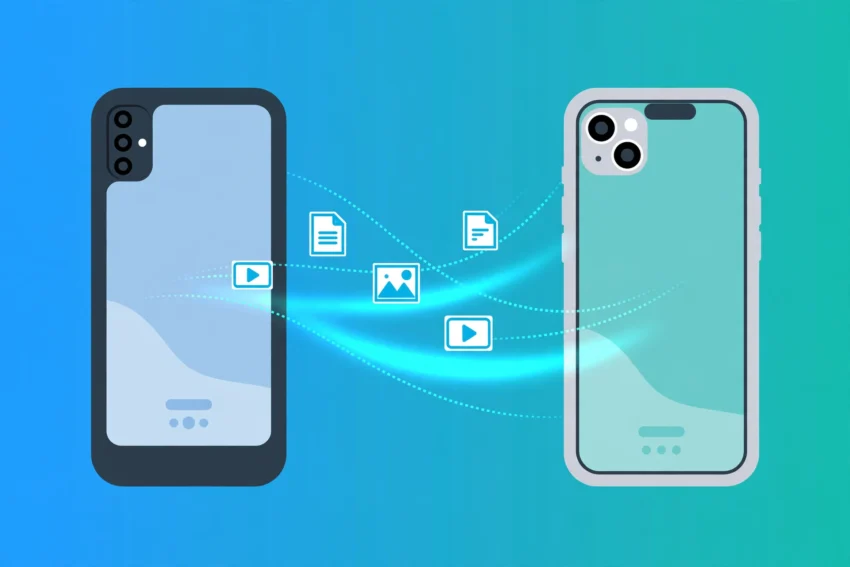
Sending a photo to a friend should take seconds, but anyone who has tried to move a large video from an Android phone to an iPhone knows it can turn into a small project. Cables go missing, messaging apps shrink your photos, and email refuses to accept a file bigger than a few megabytes. The good news is that the best free file sharing apps in 2026 have made this problem almost disappear. Whether you want to send holiday photos to family, share a work document with a colleague, or move your whole photo library to a new phone, there is a free tool that does it quickly and without a fuss.
In this guide, we look at the best free file sharing apps 2026 has to offer for Android and iPhone. We tested the ideas behind each one, compared what they do well and where they fall short, and explain which app fits which situation. None of these apps cost anything to start with, and several of them work without an account, without the internet, and without compressing your files.
Why Free File Sharing Apps Still Matter in 2026
Phones now shoot 4K video and 50-megapixel photos, so files are bigger than ever. A single minute of 4K video can be close to 400 MB, which is far too large for email and slow to upload to a chat app. At the same time, many households mix Android and Apple devices, and the two systems have never agreed on one way to share files. AirDrop only works between Apple devices, while Android’s sharing tools have changed names more than once.
That is why dedicated file sharing apps still matter. They bridge the gap between platforms, send files at full quality, and usually move data directly between devices over Wi-Fi instead of uploading it to a server first. That direct transfer is faster, keeps your files private, and works even when your internet connection is weak. If you only share the occasional photo, the built-in tools on your phone may be enough. If you share files every day, or you share them with people on a different platform, a good file sharing app saves real time.
It is also worth knowing what not to use. Sending a video through a chat app usually compresses it heavily, so the person at the other end gets a softer, smaller version of the original. Email has strict attachment limits, often around 25 MB, which a single short video can easily exceed. And moving files with a cable works, but it means finding the right cable, a computer in between, and enough patience to wait for the transfer. A proper file sharing app removes all of that friction, which is why so many people now keep one installed even if they only use it a few times a month.
Android to iPhone: What Actually Works in 2026
The hardest transfer of all is Android to iPhone, because the two systems were never designed to talk to each other. For years the only reliable options were cloud links, cables, or third-party apps. That is finally changing. In November 2025, Google enabled Quick Share on the Pixel 10 to send and receive files directly with iPhones through AirDrop, and Google has said the feature will reach many more Android phones during 2026. If you own a Pixel 10, try it first, because it feels as simple as sharing between two Android phones.
If your phone does not support that yet, LocalSend is the next best answer. Install it on both phones, connect both to the same Wi-Fi, and the transfer takes seconds. PairDrop is the answer when you cannot install anything, and Send Anywhere covers the case where the other person is in another city. Between those four options, there is no Android-to-iPhone transfer that a free app cannot handle in 2026, and none of them asks you to pay or create an account to get started.
1. Quick Share — Best Built-In Option for Android
Quick Share is Google’s answer to AirDrop, and it comes already installed on most Android phones. Google originally called it Nearby Share, then merged it with Samsung’s Quick Share in 2024, so today one button covers Pixel, Samsung and most other Android brands, plus Chromebooks and Windows PCs through a free app.
To use it, open the photo, video or document you want to send, tap Share, then tap Quick Share. Nearby devices appear on screen, and the other person taps Accept. The transfer runs over Bluetooth and Wi-Fi Direct, so it is fast and does not use your mobile data. You can control who sees your phone: everyone nearby, only your contacts, or only your own devices.
The most interesting change arrived in late 2025, when Google made Quick Share work with Apple’s AirDrop, starting with the Pixel 10 family. Google has said it will expand this to many more Android devices during 2026, which could finally end the Android-to-iPhone sharing headache. For now, though, Quick Share remains the first choice for Android-to-Android and Android-to-Windows transfers because it is already there, it is free, and it has no ads.
2. AirDrop — Best for Apple-Only Households
If everyone in your home uses an iPhone, iPad or Mac, AirDrop is still the smoothest way to share. It is built into every Apple device, needs no app and no account, and sends photos and videos at full quality over Bluetooth and Wi-Fi. Open the file, tap Share, tap AirDrop, and choose the nearby device. That is the whole process.
AirDrop lets you choose who can find you: contacts only, or everyone for ten minutes. Contacts only is the safer setting for everyday use, and it is worth checking in Settings if you have never looked at it. The only real weakness is the one everyone knows: AirDrop does not work with Android or Windows. If your household is all Apple, you may never need another app on this list. If it is mixed, keep reading.
3. LocalSend — Best Free Cross-Platform App
LocalSend is the standout free app for people who own a mix of devices. It works on Android, iPhone, Windows, Mac and Linux, it is free and open source, and it shows no ads. Both devices need the app installed and to be on the same Wi-Fi network. They then find each other automatically, and you tap to send. Files travel directly over your local network, so nothing is uploaded to a server and no account is needed.
Because it is open source, anyone can inspect how it works, which makes it a good pick if you care about privacy. It handles large files well, supports sending several files at once, and works just as smoothly between a phone and a laptop as between two phones. The only limit is that both devices must be on the same network, so it cannot send a file to someone in another city. For that, you need one of the internet-based options below.
If you are moving files between your own devices, LocalSend is also a handy companion to a proper backup routine. For a full guide on keeping your phone’s data safe, see our article on how to back up your Android phone.
4. Send Anywhere — Best for Sending Files to Someone Far Away
Send Anywhere solves the problem LocalSend cannot: sending a file to someone who is not in the same room, or even the same country. You pick a file in the app, and it gives you a six-digit key. The other person enters that key in their Send Anywhere app or on the website, and the download begins. You can also create a shareable link instead, which stays valid for 48 hours, while the six-digit key works for about ten minutes.
The app runs on Android, iPhone, Windows, Mac and the web, and the free version covers most everyday needs, although it does show ads. Transfers are encrypted, and files can be sent without creating an account. It is a practical choice for sending a large video to a relative abroad or sharing work files with a client. Just remember that the key expires quickly, so send it to the other person straight away.
5. PairDrop — Best No-Install Option
PairDrop is a free website that works like AirDrop in a browser. Open pairdrop.net on two devices connected to the same network, and they appear to each other on screen. Drag a file onto the other device’s icon and it transfers directly. There is nothing to install, no account to create, and it works on almost any device with a modern browser, including phones, tablets, laptops and smart TVs.
PairDrop is open source and grew out of the earlier Snapdrop project. Because it runs in the browser, it is the quickest option when you need to send a file from a borrowed computer or a friend’s phone without installing anything. The trade-off is that both devices must keep the page open during the transfer, and it cannot send files over the internet unless the devices are paired in a room, which is a feature meant for people who already know each other.
6. Google Drive — Best for Files You Want to Keep
Google Drive is not the fastest way to send a file to someone sitting next to you, but it is often the most practical. Every Google account includes 15 GB of free storage, shared across Drive, Gmail and Google Photos. Upload a file, tap Share, and send the link by message or email. The other person can view or download it, and you can control whether they can edit or only view.
Drive is the right tool when the file needs to live somewhere permanent: a shared family album, a set of work documents, or a backup of important papers. It also syncs across all your devices, so a file you upload from your phone is waiting on your laptop. If you need more space, our roundup of the best free cloud storage apps compares the free storage limits of Drive and its rivals.
7. Xender — Best for Offline Sharing in Areas With Weak Internet
Xender has been popular for years, particularly in regions where mobile data is expensive or Wi-Fi is unreliable. It creates a direct Wi-Fi hotspot between two phones, so files transfer without using the internet at all. It supports Android and iPhone, moves photos, videos, music, apps and documents, and can handle very large files quickly.
The app is free, but it is ad-supported, and it asks for more permissions than the simpler apps on this list. If you use it, keep it updated and check which permissions you grant. For most users with decent Wi-Fi, LocalSend or Quick Share is the cleaner choice, but Xender is worth knowing about when you need to share files with no internet connection at all.
Quick Comparison: Which App Should You Use?
| App | Platforms | Needs Internet | Account Needed | Best For |
|---|---|---|---|---|
| Quick Share | Android, Windows, Chromebook | No | No | Android users, phone to PC |
| AirDrop | iPhone, iPad, Mac | No | No | Apple-only households |
| LocalSend | Android, iOS, Windows, Mac, Linux | No, same Wi-Fi | No | Any device to any device |
| Send Anywhere | Android, iOS, Windows, Mac, web | Yes | No | Sending to someone far away |
| PairDrop | Any modern browser | No, same network | No | Quick sharing with no install |
| Google Drive | Android, iOS, web | Yes | Yes, Google | Files you want to keep and share by link |
| Xender | Android, iOS | No | No | Offline sharing with weak internet |
If you only remember one rule, it is this: use the built-in tool when both devices are the same brand, use LocalSend when they are different, and use Send Anywhere or Google Drive when the other person is far away.
How to Choose the Right File Sharing App
Start by asking three simple questions. First, who are you sending to? If it is your own devices, Quick Share or AirDrop is enough. If it is a friend on the other platform, LocalSend is the easiest free answer. Second, where are they? Same room means a local transfer; another city means a link or a key. Third, how private is the file? Local transfers keep files off the internet entirely, while cloud links are convenient but live on a server, so check the sharing settings before you send anything sensitive.
Also think about file size. Messaging apps often compress photos and videos to save data, which is fine for a quick preview but not for a photo you plan to print or edit. All the apps in this guide send files at full quality, so your 4K videos and high-resolution photos arrive exactly as they left your phone.
Finally, consider how often you will share. If it is a daily habit, a dedicated app like LocalSend is worth installing on every device you own, because it becomes second nature within a day. If you share files once in a while, the built-in tools or a browser option like PairDrop are enough, and there is no need to fill your home screen with apps you rarely open. The best app is the one you actually remember to use when the moment comes.
Tips for Sharing Files Safely
Free file sharing is convenient, but a few habits keep it safe. Keep your sharing visibility set to contacts only, not everyone, so strangers nearby cannot send you files. Accept files only from people you know, because a shared file can carry malware just like an email attachment. Check the sharing link settings on cloud services so a private document does not become public. And if you are sending something personal, prefer a direct local transfer over a public link.
It also helps to keep the apps themselves up to date. File sharing tools handle the permissions that let them see your photos and storage, so an old version with a known weakness is a risk you do not need. Turn off any “visible to everyone” setting as soon as a transfer finishes, and delete old share links from cloud storage once the other person has downloaded the file. These are small steps, but together they mean your files go exactly where you intended and nowhere else.
Switching phones is another moment when file sharing matters. If you are moving from Android to iPhone, or the other way round, our guide on how to transfer WhatsApp chats from Android to iPhone walks through moving your messages safely alongside your files.
Frequently Asked Questions
What is the best free file sharing app for Android and iPhone?
LocalSend is the best all-round free option because it works on both platforms, needs no account, shows no ads, and sends files at full quality over your Wi-Fi. If you only share between Android phones, Quick Share is already built in and just as good.
Can I send files from Android to iPhone without an app?
Yes, with limits. PairDrop works in a browser with no install when both phones share the same Wi-Fi network. Since late 2025, Quick Share on the Pixel 10 can also send files directly to iPhones through AirDrop, and Google plans to bring this to more Android phones during 2026.
Is it safe to use free file sharing apps?
The apps in this guide are widely used and safe when downloaded from the official Play Store or App Store. Prefer apps that transfer files directly between devices, keep your visibility set to contacts only, and avoid sideloaded copies of popular apps, which can be modified.
Why do my photos lose quality when I send them?
Messaging apps compress photos and videos to save data and storage. File sharing apps like Quick Share, AirDrop and LocalSend send the original file, so quality stays the same. If quality matters, always use a file sharing app instead of a chat app.
What is the file size limit for free file sharing apps?
Local transfers with Quick Share, AirDrop and LocalSend have no practical size limit beyond your device storage. Cloud services are different: Google Drive’s free plan gives you 15 GB of storage in total, so very large files count against that limit.
Conclusion
File sharing between Android and iPhone used to be a chore, but in 2026 it is mostly a solved problem. Quick Share and AirDrop handle same-brand transfers beautifully, LocalSend bridges the two platforms for free and without ads, Send Anywhere reaches people anywhere in the world, and PairDrop works when you cannot install anything. Pick the app that matches who you are sending to and where they are, keep your sharing settings on contacts only, and you will rarely need a cable again.
Try LocalSend first if you share files across Android and iPhone, and keep Quick Share or AirDrop ready for quick transfers between your own devices. Your photos will arrive at full quality, your files will get there in seconds, and you will wonder why you ever emailed yourself a video.