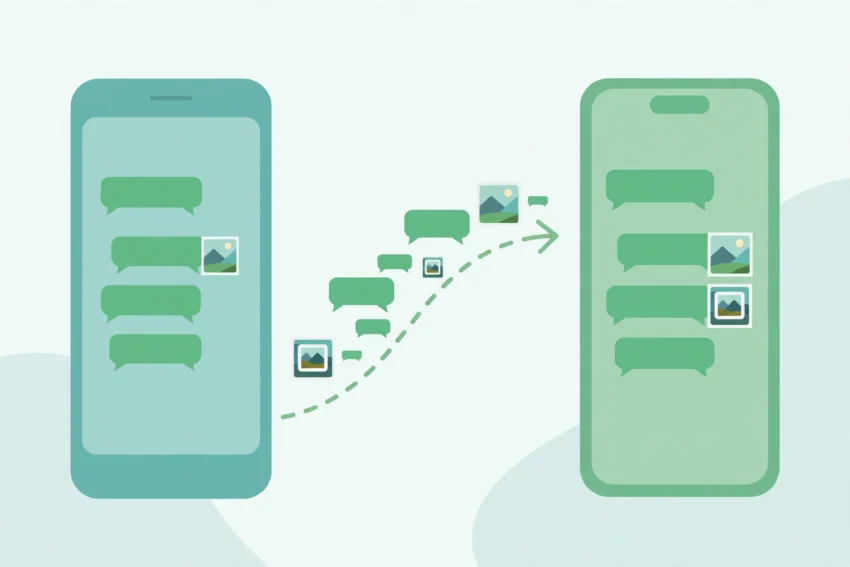
Switching from Android to iPhone is exciting — until you realise years of WhatsApp chats, photos and voice notes are sitting on the old phone. The good news is that moving them is free and officially supported in 2026. The bad news is that there is one strict rule most people only discover too late: the transfer only works while the iPhone is being set up for the first time.
In this guide, you will learn exactly how to transfer WhatsApp chats from Android to iPhone using Apple’s official Move to iOS method, what moves across and what does not, and what to do if your iPhone is already set up.
The One Rule You Must Know First
WhatsApp’s official Android-to-iPhone transfer only runs during the iPhone’s initial setup, at the “Apps & Data” screen. If you have already finished setting up your iPhone and started using it, the option simply is not there any more.
That means timing matters more than anything else in this guide. Do the transfer before you start using the new iPhone — not after a week of messages have already piled up on it. If the iPhone is already in daily use, the only official way back to the setup screen is to erase it and start again, which is why this is worth planning for a few minutes before you switch the phone on.
There is also no cloud shortcut. A WhatsApp backup made on Android lives on Google Drive, and an iPhone restores WhatsApp only from iCloud. The two backup formats are not interchangeable, so restoring a Google Drive backup on an iPhone is not possible.
What You Need Before You Start
Run through this checklist before touching either phone. A failed transfer is almost always caused by skipping one of these:
- A new or factory-reset iPhone — it must be sitting at the setup screen, not already configured.
- Android 5.0 or later on the old phone and iOS 15.5 or later on the iPhone. Any reasonably recent phone clears this easily.
- The latest version of WhatsApp installed on the Android phone, updated from the Play Store before you start.
- Apple’s free Move to iOS app installed on the Android phone from the Play Store.
- The same phone number on both phones. WhatsApp on the iPhone must be verified with the same number the Android phone used.
- Both phones charged or plugged in, kept close together, with enough free storage on the iPhone for your entire chat history including media.
- Your two-step verification PIN, if you set one up on WhatsApp. You will need it when you log in on the iPhone.
- Time. A small chat history moves in minutes; a large one with years of photos and videos can take considerably longer. Do not use either phone while it runs.
Before you begin, it is also smart to make a fresh backup of the Android phone. If anything goes wrong mid-transfer, you still have a copy of everything. Our guide to backing up your Android phone walks through the options step by step.
What Transfers — and What Does Not
Most of what matters comes across. Your personal chats, group chats, community conversations, media, voice messages and settings all move to the iPhone. Your account information and profile photo move too.
A few things stay behind, and it is better to know this in advance:
- Call history does not transfer.
- Your display name does not transfer — you will set it again on the iPhone.
- Media received through Channels does not transfer.
- WhatsApp Business chats are not supported by this method at all. If you use WhatsApp Business on Android, its chats cannot move to an iPhone this way.
One more thing to note: the chats you move are not automatically backed up to iCloud. Until you turn on iCloud backup on the iPhone, your chats exist only on the device itself — so make that one of the first things you do after the move.
How to Transfer WhatsApp Chats from Android to iPhone: Step by Step
Step 1: Get the iPhone to the Apps & Data screen
Turn on the iPhone and work through the setup screens — language, region, Wi-Fi — until you reach the “Apps & Data” step. Choose “Move Data from Android”. The iPhone will show a code on screen. Leave it there for now.
Step 2: Open Move to iOS on the Android phone
Install Move to iOS from the Play Store if you have not already, open it, and accept the terms. When it asks for the code, type in the one shown on the iPhone. The two phones will connect over a temporary private Wi-Fi network the app creates between them.
Step 3: Select WhatsApp on the Transfer Data screen
On the Android phone, you will see a list of things you can bring over. Tick WhatsApp (along with anything else you want, such as contacts and photos). Tap Start on the Android phone and let WhatsApp prepare your chats for export. This can take a while if your history is large — leave both phones alone.
Step 4: Wait for the transfer to finish
Once WhatsApp has finished preparing the data, the transfer itself begins. Keep both phones close together, plugged in, and untouched until Move to iOS says it is done. Do not switch apps, take calls, or let either screen lock mid-transfer if you can avoid it.
Step 5: Install WhatsApp on the iPhone and log in
Finish the rest of the iPhone setup, then install WhatsApp from the App Store. Open it and log in with the same phone number you used on Android. When prompted, tap Start to complete the transfer and wait for the chats to appear. That is the whole official route.
After the Transfer: 3 Things to Do Immediately
1. Check that everything arrived. Open a few of your biggest chats and groups and confirm the media is there. Compare the chat list with the old phone before you wipe or hand it on.
2. Turn on iCloud backup. In WhatsApp on the iPhone, go to Settings, then Chats, then Chat Backup, and switch on automatic backup. If your chat history is larger than the free 5 GB of iCloud storage, you may need a paid iCloud plan or extra room — see our roundup of the best free cloud storage apps for alternatives that can help with the rest of your files.
3. Do not delete anything from the old phone yet. Keep the Android phone as it is for a day or two, until you are certain the transfer worked and the iCloud backup has completed. Only then should you erase it or pass it on.
What If Your iPhone Is Already Set Up?
This is the situation most people actually find themselves in — and the honest answer is that there is no official way to add Android chats to an iPhone that is already in use. WhatsApp is clear about it: once WhatsApp is active on the iPhone, the only official path is to erase the iPhone and go through setup again.
That is a realistic option if the iPhone is still new and holds little you would miss. Back up the iPhone first, then erase it from Settings, then General, then Transfer or Reset iPhone, and start the guide above from the beginning.
You will also see paid tools advertised online that claim to move WhatsApp chats onto an already-set-up iPhone without a reset. Treat these with caution. They are not official, they usually require connecting both phones to a computer, they cost money, and they ask for access to your private messages. If your chats matter to you, the free official method — even with a reset — is the safer choice. If you run two numbers, our guide to using two WhatsApp accounts on one phone may also be useful while you sort out the switch.
Common Problems and Fixes
The transfer gets stuck. The usual causes are a weak connection between the phones or one of them running out of battery. Keep both phones within a metre of each other, plugged in, and do not use them. If it stalls for a long time, cancel and start again from the setup screen — do not try to resume halfway.
The code from the iPhone does not work. Make sure you are typing the code shown on the iPhone’s screen right now, not one from an earlier attempt. Restarting Move to iOS on the Android phone and generating a fresh code usually fixes it.
There is not enough storage on the iPhone. WhatsApp needs room for your entire chat history plus media. Free up space before you start, or check whether you really need every old video and voice note — trimming large media on Android before the transfer makes the whole process faster.
WhatsApp on the iPhone asks for a PIN. That is your two-step verification PIN from the old phone. If you have forgotten it, you can reset it from the Android phone before you start the transfer — do not get locked out mid-move.
Frequently Asked Questions
Can I transfer WhatsApp chats from Android to iPhone after setting up the iPhone?
Not with the official method. Move to iOS only works during the iPhone’s initial setup. If the iPhone is already set up, you need to erase it and start setup again to use the official route.
Is transferring WhatsApp from Android to iPhone free?
Yes. The official Move to iOS method is completely free. Apple’s app is free on the Play Store and WhatsApp charges nothing for the transfer. Any tool asking you to pay for it is a third-party product, not the official method.
Does my WhatsApp call history transfer to the iPhone?
No. Call history, your display name, and media received through Channels do not transfer. Your chats, groups, media, voice messages and settings do.
Can I move WhatsApp Business chats from Android to iPhone?
No. WhatsApp says moving chats from Android to iPhone is currently not possible on the WhatsApp Business app with the official method.
Will my Google Drive WhatsApp backup work on iPhone?
No. WhatsApp backups on Android are stored in Google Drive, while iPhone backups use iCloud. The two formats are not interchangeable, so a Google Drive backup cannot be restored on an iPhone.
Conclusion
Moving WhatsApp chats from Android to iPhone in 2026 is straightforward once you know the one rule that matters: do it during the iPhone’s first setup, with Apple’s free Move to iOS app, using the same phone number. Your chats, groups and media come across; only call history, your display name and Channel media stay behind.
The most common mistake is setting up the iPhone first and looking for the transfer option later, when it is already gone. So if a new iPhone is on its way, keep this guide handy and run the transfer before anything else. A few minutes of patience during setup saves you from losing years of conversations — or from having to erase the phone and start all over again.